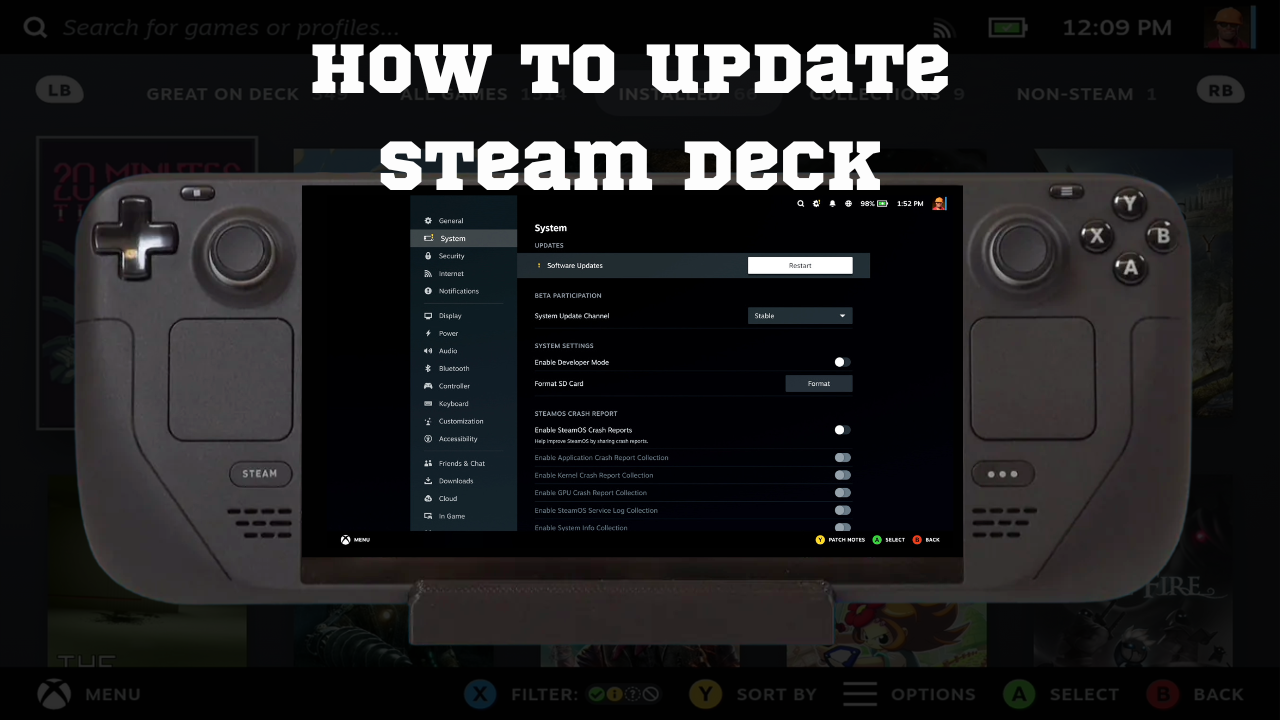
Updating your Steam Deck is simple and only takes a moment. Whether you’re checking manually or applying an update that’s already downloaded, the steps are the same.
1. Open Settings
Press the Steam button, scroll down, and select Settings from the menu on the left.
2. Go to the System tab
Inside Settings, tap on System.
This is where SteamOS handles updates.
3. Check for updates
At the top of the page you’ll see either:
- Check for Updates — which means no update has been downloaded yet
- Apply — which means an update is already downloaded and ready to install
If you see Check for Updates, tap it and the Deck will tell you if a new update is available.
If Apply is shown, just hit it and move on.
4. Restart to finish
Once the update is installed, the Deck will ask to restart.
After the reboot, you’re fully updated. That’s all there is to it.
SteamOS keeps things straightforward so you can update quickly and get back to your games.